


Jan 10, 2011
Just few minutes back while I was playing with registry, found some tricky values for notepad++ shell extension (context menu icon and title).
Then wrote little application to modify them.
Download : Zip

Registry settings for this will post later..
Jan 22, 2009
These days i'm too busy in my work, so i don't have time to update my blog regularly but still whenever i have free time i try to write some useful codes n programs for personal or public use.
Last week i wrote another useful tool..

(Based on my previous post of Right click menu - Open with photoshop for jpg/jpeg files.)
Download : Mirror
Oct 16, 2008
Two days ago i wrote another program for adding my favorite folder at drives context menu in My Computer.
This application allows you to add your favorite or working folder to drives context menu..
You can Set/Update/Remove this context menu easily using this application..
Useful for lazy people like me :)

Download:
AddContextDrive.zip (mirror1)
Sep 11, 2008

This registry setting allows you to add a new file extension and file type that is currently not not available in your windows system, and adds inside your right click 'New' context menu .
Many time we needs a file to store our personal data, notes, reminders, appointments etc.. n which wants to identify easily in our system files..
By using this setting you can make your own file type n extension for your daily use :)
Settings:
(Dont use single or double quotes in complete setting)
1] Start > Run > regedit> hit Enter
2] Select HKEY_CLASSES_ROOT key..
3] Right Click> New > Key (add New key at HKEY_CLASSES_ROOT)
4] Write your file extension like '.note' ( or any other which you want, but use dot "." before extension, i used .note )
5] on right side pane double click on (Default) to modify '(Default)' value to file write as 'notefile'
(Do not use any spaces between file type value, you can use any other value too like myfile, mynotes so on..)
You just added file extension, now you need to set data for your file type..
6] Now go back to HKEY_CLASSES_ROOT key..
7] Create New Key by right click
8] write 'notefile' as key name ( we used 'notefile' is file type for our extension, which is same as where we set step 5, if you used any other file type write this same value as your key name)
9] On right side pane, double click on '(Default)' n set description for your file Like 'My note file'
( here you can use spaces)
10] then right click in blank space at right side pane n add new DWORD value, write 'BrowserFlags' as name, double click on BrowserFlags to modify n set Hexadecimal value '8' (Eight)
11] add another new DWORD value, name it 'EditFlags' n set Hexadecimal value '0' (Zero)
12] Select 'notefile' > add new Key > write key name - 'DefaultIcon'
13] on right side pane double click on '(Default)' n write path of your icon file for your extension
like 'C:\WINDOWS\myicon.ico'
14] Select notefile key, add new Key n name it 'shell'
15] Select shell Key, add new Key n name it 'Open'
16] Select Open key, add new key n name it 'command'
now you are here- 'HKEY_CLASSES_ROOT\notefile\shell\Open\command', ok?
17] Now on right side pane select '(Default)', double click to modify, n now right the path of application for your file type, like 'C:\WINDOWS\notepad.exe %1'
18] Now we want to add our file type inside right click New menu so go back at '.note' key
19] select '.note' key, add new Key n name it 'ShellNew'
20] On right side pane, right click in blank space n add new String value, name it 'NullFile'
(Dont set any value for this Nullfile, leave blank)
See image [Or Download this registry file for setting, n change the icon path in reg file, rename this file as 'filetype.reg' by removing .txt of file, and merge it)
Sep 1, 2008
Last week i got new hack to change the position for open with and winRAR context menu..
I just added single DWORD value in CLSID of open with n winRAR and it works perfect in a single try..
So i like it share with you..

Lets start..
follow my few steps and change your context menu position...
Settings:-
1] Start > Run > regedit> hit Enter
2] Registry > HKEY_CLASSES_ROOT > go to 'CLSID' key
for Open with..
3] CLSID > find & select {09799AFB-AD67-11d1-ABCD-00C04FC30936}
(to find press ctrl+F, look at only keys)
4] On right side pane you will see '(Default)' string value like 'Open With Context Menu Handler'
means your at right key
5] Right click in right side pane > add New > DWORD value
6] Name it as 'flags' > hit enter to save
7] Double click on flags to modify> set Hexadecimal value '1' (one)
8] Now refresh your desktop n check context menu
for WinRAR...
3] CLSID > find & select {B41DB860-8EE4-11D2-9906-E49FADC173CA}
4] Right click in right side pane > add New > DWORD value
6] Name it as 'flags' > hit enter to save
7] Double click on flags to modify> set Hexadecimal value '1' (one)
Remember:
1] if you set flags to '0' (zero) - Your selected context menu will be display under Rename menu
2] if you set flags to '1' (one) - Your selected context menu will be display with sendTo, copy to folder n move to folder (like in image)
3] if you set flags to '2' (two) - It display at default position
Aug 29, 2008
This setting allows you to assign any file on your computer a new right-click menu (context menu) entry.
This entry is named "Open with..."
By using this menu you can open any file from any other applications..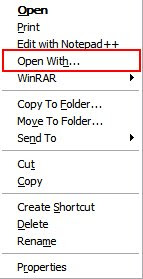
Settings:-
For any File:
1] Start > Run > regedit> hit Enter
2] Registry > My Computer > HKEY_CLASSES_ROOT > select * (1st subkey)
3] * > shellex > select 'ContextMenuHandlers' & right click > then New > Key
4] then replace 'New Key #1' key name to 'Open With'
5] on right side pane, select '(Default)' name n Double click on it, then brings Edit string field
6] enter value data as '{09799AFB-AD67-11d1-ABCD-00C04FC30936}'and hit Enter.
(Plz enter value as case sensitive with curly braces)
[or Download this file, rename and remove .txt extention, n merge it]
Aug 17, 2008
Who mostly uses a photoshop to editing images, if they want to open an image file then they use file > open from photoshop menus..
Me 2 mostly use photoshop for editing images but im lazy to open every image from photoshop's open menu, so i edit some keys in my most favorite registry editor to add context menu for open jpg/jpeg to photoshop directly....
and made my context menu something like below image.. look it...

Now im giving you settings for this hack...
1] Start > Run > regedit> hit Enter
2] Registry > My Computer > HKEY_CLASSES_ROOT > jpegfile
(if you not found this key then Find it from edit> Find> n tick to key only)
4] Then name this new key as 'Open in CS2' or something like you want to set
5] Select 'Open in CS2' > add New Key again > name it 'command' (case sensitive)
6] select '(Default)' from right side pane > Double click to modify value
7] enter value as [ C:\program files\Adobe\Adobe Photoshop CS2\photoshop.exe "%1" ]
(means - your photoshop application path and "%1" with quotes )
8] refesh desktop n check any jpg/jpeg image files context menu
Download jpg-cs2.reg.txt file , rename this txt file as 'jpg-cs2.reg' and merge it..
Update: 01.Feb.09
Download Application to set Open with context menu for images
Aug 16, 2008

In windows, we open some files with other supported applications too.. like mp3 files we can open with winamp, media player, itune, or many other mp3 players...
Now here ill tell you hack for how to remove unwanted applications from this open with list..
This is very simple n useful trick
lets go..
Settings:-
1] Run > regedit > hit Enter
2] Registry > My Computer > HKEY_CLASSES_ROOT > Applications
3] When you expand 'Applications' key then you will see a long sub keys list of program names
like accwiz.exe, BitTorrent.exe, n something like more list..
4] Then select a application key which you want to remove from 'Open with' list..
(e.g.- i selected 'flash.exe' to remove from list)
5] Right click in right side pane in blank area or go to Edit> New
6] add New> 'String Value' (REG_SZ)
7] Change name of string value as 'NoOpenWith' (case-sensitive)
8] We Don't need to set any value data for this string..
9] Refresh your desktop n check open with list for any file..
Finish... :-)
