


Jan 10, 2011
Just few minutes back while I was playing with registry, found some tricky values for notepad++ shell extension (context menu icon and title).
Then wrote little application to modify them.
Download : Zip

Registry settings for this will post later..
Oct 16, 2008
Two days ago i wrote another program for adding my favorite folder at drives context menu in My Computer.
This application allows you to add your favorite or working folder to drives context menu..
You can Set/Update/Remove this context menu easily using this application..
Useful for lazy people like me :)

Download:
AddContextDrive.zip (mirror1)
Sep 18, 2008
This setting allows you to Remove 'sendto' option from right-click menu (context menu).
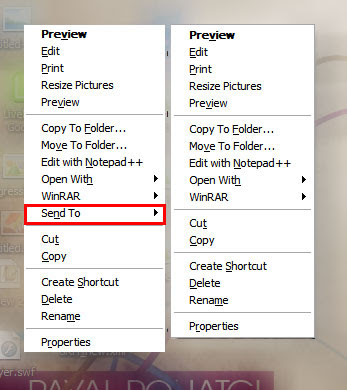
1] Run > Regedit > hit Enter
2] Registry > My Computer > HKEY_CLASSES_ROOT > select AllFilesystemObjects
3] AllFilesystemObjects > shellex > ContextMenuHandlers
4] ContextMenuHandlers > select Send To
5] now right side pane double click on '(Default)'
6] Add '-' (minus sign) in front of {7BA4C740-9E81-11CF-99D3-00AA004AE837}
7] like this ' -{7BA4C740-9E81-11CF-99D3-00AA004AE837}'
8] Now refresh your Desktop n check right click menu.. :)
Aug 21, 2008
Everybody has own custom folder in his computer to save, collect, work, music and for anything else, we use one or few more folder always for whatever we save or work...
So i wanna tell you one trick for 'How to add our favorite folder in SendTo menu'
There is no any trick in registry to add this context menu.. :-)
We just need to add shortcut of our folder in users SendTo shell folder..
Lets Start,
Settings:
1] go to Start> Run
2] Enter '%USERPROFILE%\SendTo' and hit Enter...
3] Then right click in anywhere in blank space in this folder...
4] Add new shortcut from New menu
5] It brings 'create shortcut' window...
6] browse in select your folder which you want in SendTo.. n Next
7] Name it what u want and press finish
8] Now select your shortcut folder > Right click > Properties
9] select shortcut tab, and 'change icon' for this shortcut folder...
10] Refresh your desktop and check your SendTo menu... :-)
[Note: SendTo menu only copy your files n folders, never move your file]
Aug 11, 2008
 This setting allows you to assign any file on your computer a new right-click menu (context menu) entry.
This entry is named "MoveTo Folder..." which is copy current selected file/files to any folder directly from Right click menu..
Settings:-
For any File:
1] Start > Run > regedit> hit Enter
2] Registry > My Computer > HKEY_CLASSES_ROOT > select * (1st subkey)
3] * > shellex > select 'ContextMenuHandlers' & right click > then New > Key
4] then replace 'New Key #1' key name to 'Move To...' or as u wish you can write
5] on right side pane, select '(Default)' name n Double click on it, then brings Edit string field
6] enter value data as '{C2FBB631-2971-11d1-A18c-00c04FD75D13}' in it n hit Enter.
(Plz enter value as case sensitive with curly braces)
For any Folder:
1] Start > Run > regedit> hit Enter
2] Registry > My Computer > HKEY_CLASSES_ROOT > Folder
3] Folder > shellex > select 'ContextMenuHandlers' & right click > then New > Key
4] then replace 'New Key #1' key name to 'Move To...' or as u wish you can write
5] on right side pane, select '(Default)' name n Double click on it, then brings Edit string field
6] enter value data as '{C2FBB631-2971-11d1-A18c-00c04FD75D13}' in it n hit Enter.
(Plz enter value as case sensitive with curly braces)
This setting allows you to assign any file on your computer a new right-click menu (context menu) entry.
This entry is named "Copy To Folder..." which is copy current selected file/files to any folder directly from Right click menu..
Settings:-
For any File:
1] Start > Run > regedit> hit Enter
2] Registry > My Computer > HKEY_CLASSES_ROOT > select * (1st subkey)
3] * > shellex > select 'ContextMenuHandlers' & right click > then New > Key
4] then replace 'New Key #1' key name to 'Copy To...' or as u wish you can write(but use as nick)
5] on right side pane, select '(Default)' name n Double click on it, then brings Edit string field
6] enter value data as '{C2FBB630-2971-11d1-A18c-00c04FD75D13}' in it n hit Enter.
(Plz enter value as case sensitive with curly braces)
2] Registry > My Computer > HKEY_CLASSES_ROOT > Folder
4] then replace 'New Key #1' key name to 'Copy To...' or as u wish you can write(but use as nick)
5] on right side pane, select '(Default)' name n Double click on it, then brings Edit string field
6] enter value data as '{C2FBB631-2971-11d1-A18c-00c04FD75D13}' in it n hit Enter.
Aug 4, 2008
 This setting allows you to Direct Preview of image containing folder, setting adds a Right Click (context menu) to your every folder.
This entry is named "Image Preview for folder" which will simply open Windows Picture & Fax viewer containing all images from selected folder n shows preview instead of single file image preview
Settings:
1] Start > Run > regedit> hit Enter
2] goto > HKEY_CLASSES_ROOT >Directory >shell
3] right click >New > Key> write 'Image Preview for folder'> hit Enter
4] right click on 'Image Preview for folder' >New > Key > write 'command' > hit Enter
5] in right pane select '(Default)' > double click on it
6] Write value as
'rundll32.exe C:\\WINDOWS\\System32\\shimgvw.dll,ImageView_Fullscreen %1'
(in single line without quotes) > hit Enter
7] Refresh desktop or My computer & Check any image contained folder ;-)
